



The Complete Guide to Hyundai Bluelink: Features, Setup & Smart Control
Hyundai Bluelink is more than a remote start button — it’s a full connected-car platform that puts control, safety, and convenience directly in your hands. Whether you’re warming up your Hyundai on a cool Ontario morning, checking your vehicle’s health from work in Rancho Cucamonga, or helping a teen driver stay safe around Eastvale, Bluelink brings your car into your digital life. This guide covers everything Ontario Hyundai drivers need to know about Bluelink: what it does, how to set it up, how to troubleshoot common issues, and how to get the most out of every feature.
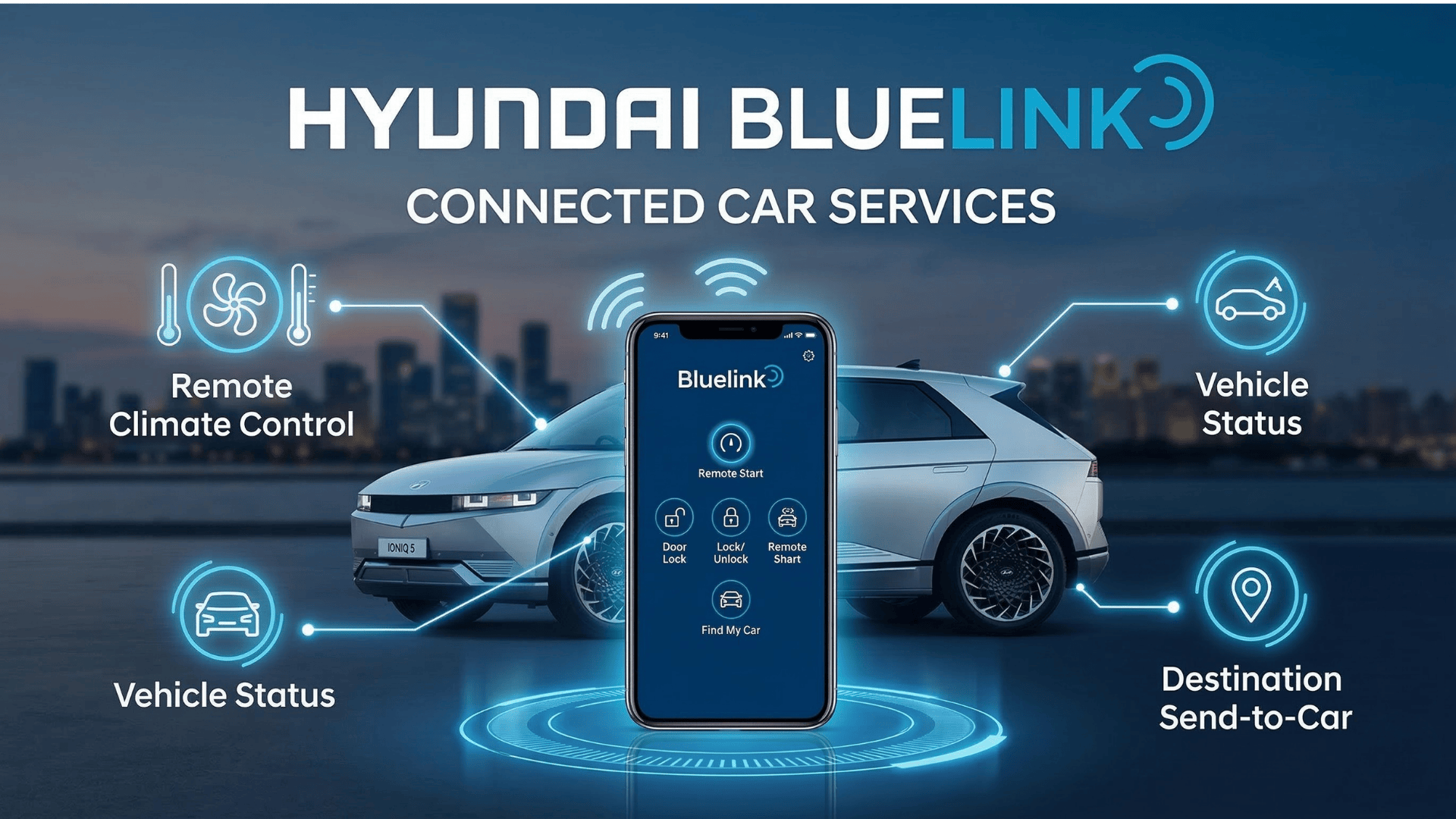
What Hyundai Bluelink Can Do for You
Bluelink’s most popular feature is remote start with climate control. Using the MyHyundai app on your smartphone or smartwatch, you can start your Hyundai’s engine and pre-set the cabin temperature before you ever step outside. During Inland Empire summers — when your car has been sitting in the sun all afternoon — or on cooler mornings in Fontana and Corona, this feature alone makes a noticeable difference in daily comfort.
Remote Start & Climate Control
Start your engine and pre-condition the cabin temperature from anywhere using the MyHyundai app or compatible smartwatch. Perfect for Ontario’s summer heat or cooler Inland Empire mornings.
Remote Door Lock & Unlock
Control your doors from anywhere via the app, secured by PIN verification. Let a family member in remotely or confirm your car is locked without walking back to the parking lot.
Vehicle Diagnostics & Alerts
Bluelink monitors your Hyundai’s key systems and sends alerts to your phone when something needs attention — from low tire pressure to engine warnings — before small issues become big repairs.
Vehicle Location Services
The remote car finder pinpoints your Hyundai’s exact location on a map within the app. Especially useful in large parking areas around Rancho Cucamonga or Puente Hills.
Geofence & Safety Alerts
Set virtual boundaries, speed limits, and curfew times for your vehicle. If a teen driver exceeds any preset parameter, you receive an immediate notification — a practical tool for Inland Empire families.
Emergency & Roadside Assistance
If an airbag deploys in a collision, Bluelink automatically notifies emergency responders with your vehicle’s exact location. The SOS button provides 24/7 access to Hyundai’s roadside team — included at no extra cost.
Stolen Vehicle Recovery
In the event of theft, Bluelink provides real-time GPS data to law enforcement to help locate and recover your vehicle quickly.
EV & Plug-In Charge Management
For IONIQ and plug-in hybrid owners, Bluelink lets you schedule charging remotely to take advantage of off-peak electricity rates and monitor battery status from the app.
Smart Device & Voice Integration
The MyHyundai with Bluelink app is available for both iPhone (iOS 13.6+) and Android (OS 12+) smartphones, with smartwatch support for Apple Watch and Wear OS devices. Amazon Alexa and Google Assistant integration lets you control core functions hands-free — start your car, lock your doors, or check status with a voice command.
How to Set Up Hyundai Bluelink
Getting Bluelink activated is a straightforward process. Here’s what to expect:
Step 1: Create Your MyHyundai Account
Start at the MyHyundai website or within the MyHyundai with Bluelink app. Register with your name, email, and a secure password, then verify your email to complete account creation.
Step 2: Locate Your VIN
You’ll need your 17-character Vehicle Identification Number to link your car to your account. Find it on the driver’s side dashboard (visible through the windshield), inside the driver’s door jamb, or on your registration documents.
Step 3: Enroll Your Vehicle
Log in to your MyHyundai account, navigate to the Bluelink or Connected Car section, enter your VIN, and accept the terms of service. Your vehicle will be linked to your account.
Step 4: Download the App & Pair Your Vehicle
Download the MyHyundai with Bluelink app from the Apple App Store or Google Play Store. Sign in with your MyHyundai credentials and follow the on-screen prompts to pair your vehicle — this may include entering a one-time PIN shown on your vehicle’s infotainment screen. Enable location services and push notifications for full functionality.
Step 5: Activate & Customize Features
Once paired, configure your preferences through the app: set remote start climate preferences, enable geofence and speed alerts, and verify that emergency assistance is active. Test remote functions — start the engine or lock the doors via the app — to confirm everything is working correctly.
If you run into any issues during setup, Ontario Hyundai’s team at 1307 Kettering Dr, Ontario, CA 91761 can walk you through the process. Call us at 888-653-8231.
Troubleshooting Common Bluelink Issues
Bluelink is reliable, but like any connected system it can occasionally experience hiccups. Here are the most common issues and how to resolve them.
App Won’t Connect to the Vehicle
Check your cellular signal first — Bluelink relies on the cellular network embedded in your vehicle’s telematics unit. Moving to an area with stronger signal often resolves this. Also confirm your MyHyundai app is updated to the latest version, as outdated apps are a frequent cause of connection failures.
Remote Commands Aren’t Executing
Restart the app completely, then turn your vehicle off and back on to reset the telematics module. A simple reboot resolves most intermittent issues.
Delayed Response Times
Network congestion or temporary server maintenance can slow command processing. Wait a few minutes and try again.
Login or Authentication Problems
Verify your credentials are correct and that your VIN is properly linked to your account. If you recently changed your password, log out and back in to refresh the authentication.
Commands Disabled in Specific Conditions
Bluelink is designed to prevent remote start if the vehicle is in gear or the hood is open. These are intentional safety lockouts, not malfunctions.
Low Vehicle Battery
A weak 12V battery can cause telematics malfunctions. If your vehicle has been sitting unused for an extended period, check battery health before troubleshooting the app.
If you’ve worked through these steps and Bluelink still isn’t performing correctly, Ontario Hyundai’s service team is available to diagnose and resolve telematics issues.
Understanding Bluelink Subscription Costs
Bluelink’s cost structure depends on your vehicle’s model year and ownership status.
| Vehicle / Ownership Type | Bluelink Coverage | After Trial / Renewal |
|---|---|---|
| 2024+ Hyundai models & 2023 IONIQ 6 (original owner) | Bluelink+ complimentary — no recurring fee for original owner | Map/OTA updates: free for 3 years, fees may apply after |
| 2023 and older models (new vehicle purchase) | 3-year complimentary trial included | $99/year or $9.90/month per package (3 packages available) |
| Certified Pre-Owned | Advanced tier complimentary for 1 year | Subscription fees apply after trial |
| Used vehicles (non-CPO) | 3-month Advanced tier trial | Subscription fees apply after trial |
For the most current pricing and to confirm what’s included with your specific vehicle, contact Ontario Hyundai at 888-653-8231 or visit our Bluelink page for details.
Getting the Most Out of Bluelink in the Inland Empire
A few practical tips for Ontario-area drivers:
Use Remote Start Strategically
Southern California summers are hard on vehicle interiors. Pre-cooling your cabin during the afternoon hours in Ontario, Fontana, or Eastvale is one of the most immediate quality-of-life improvements Bluelink offers.
Keep the App Updated
Hyundai releases app updates that improve connectivity, add features, and patch bugs. Checking for updates regularly ensures you’re always running the most stable version.
Schedule Service Through Bluelink
When the app detects a maintenance alert, you can book a service appointment directly through the Service Link feature. Ontario Hyundai’s team is ready to support you with genuine Hyundai parts and certified technicians.
Set Up Family Safety Alerts First
If your household includes new or teen drivers, configure geofence and speed alerts before they take the car. Takes five minutes in the app and provides ongoing peace of mind.
Connect Your Voice Assistant
Linking Bluelink to Alexa or Google Assistant is a one-time setup that pays off daily. Starting your car, locking your doors, and checking vehicle status without picking up your phone adds up over time.
Ready to Experience Bluelink?
Ontario Hyundai carries a full lineup of Bluelink-equipped Hyundai models. Whether you’re shopping for your first connected vehicle or want to learn more about the features on your current Hyundai, our team is here to help. Visit us at 1307 Kettering Dr, Ontario, CA 91761.
0 comment(s) so far on The Complete Guide to Hyundai Bluelink: Features, Setup & Smart Control